Protect an admin panel with Cloudflare Zero Trust
The simplest extra protection for a website or an admin panel: a one-time email code from Cloudflare Zero Trust, with no changes on the server.
There are many comprehensive ways to add protection to a service, a website or an administration panel. One of the simplest and most effective is Cloudflare Zero Trust. In a couple of clicks you put a login step in front of your resource, without any changes on the website or the server.
What you need
Your domain has to be connected to Cloudflare.
Create the application
Log in to your Cloudflare account and open the Zero Trust section.
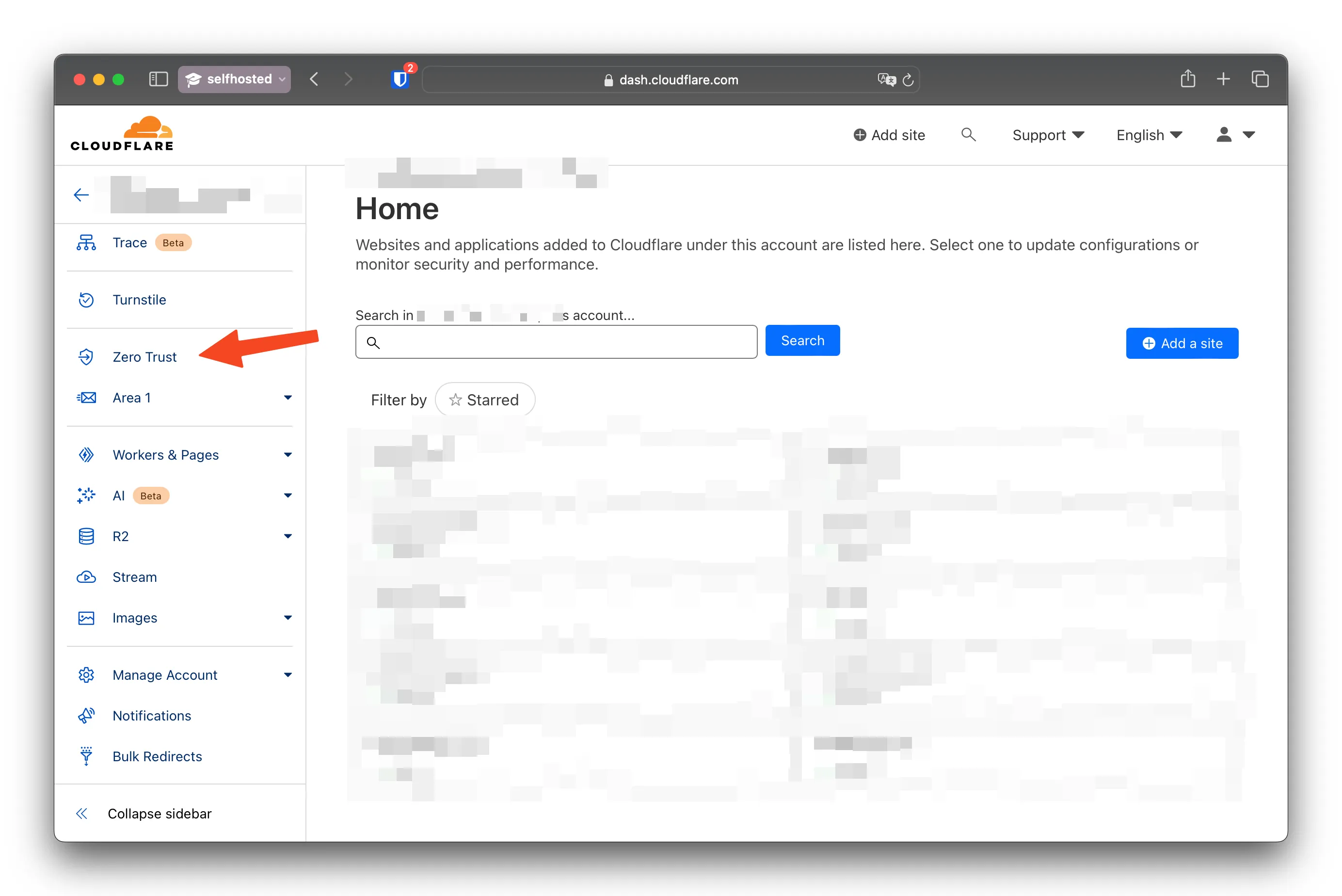
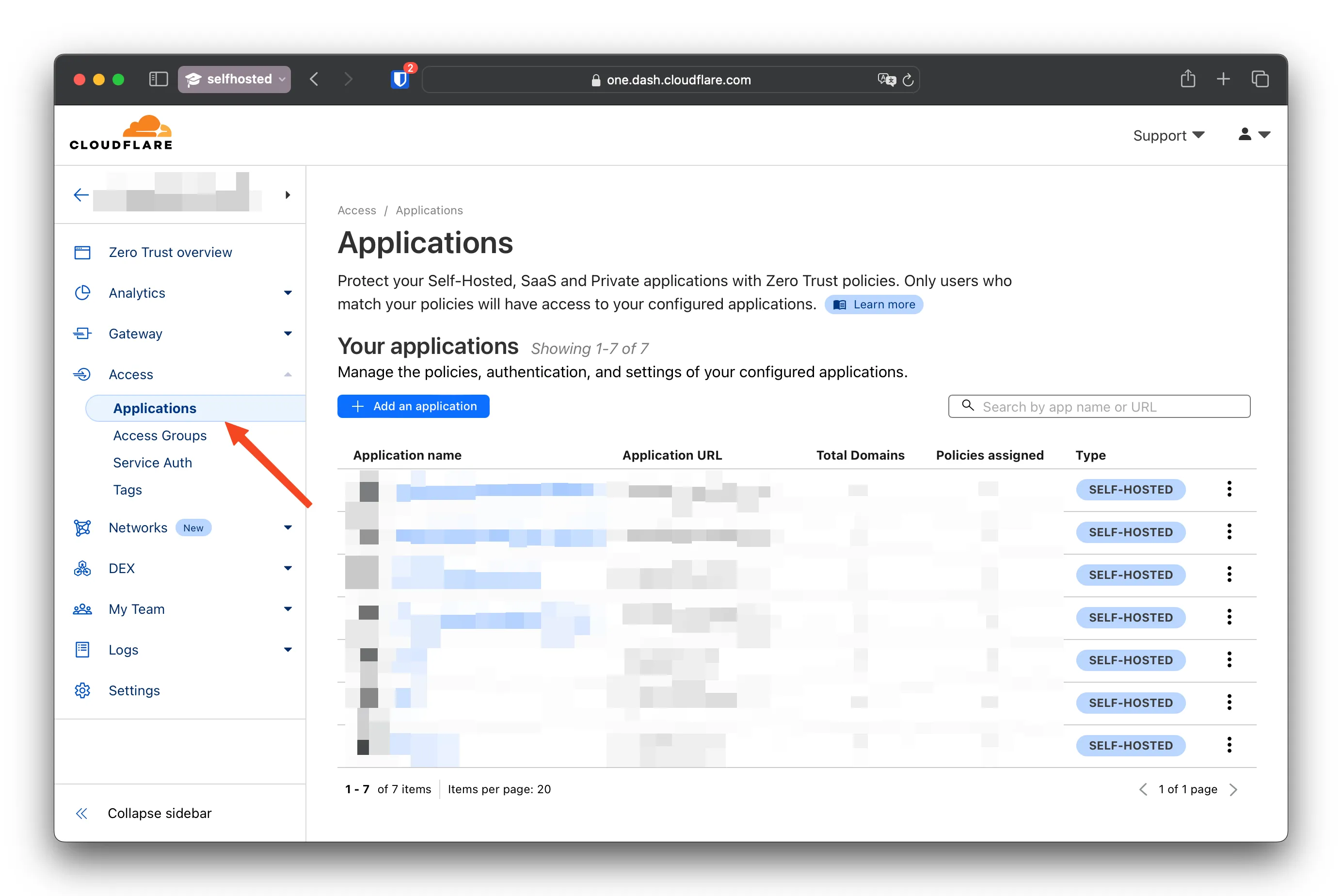
Go to Access, then Applications, and click “Add an application”.
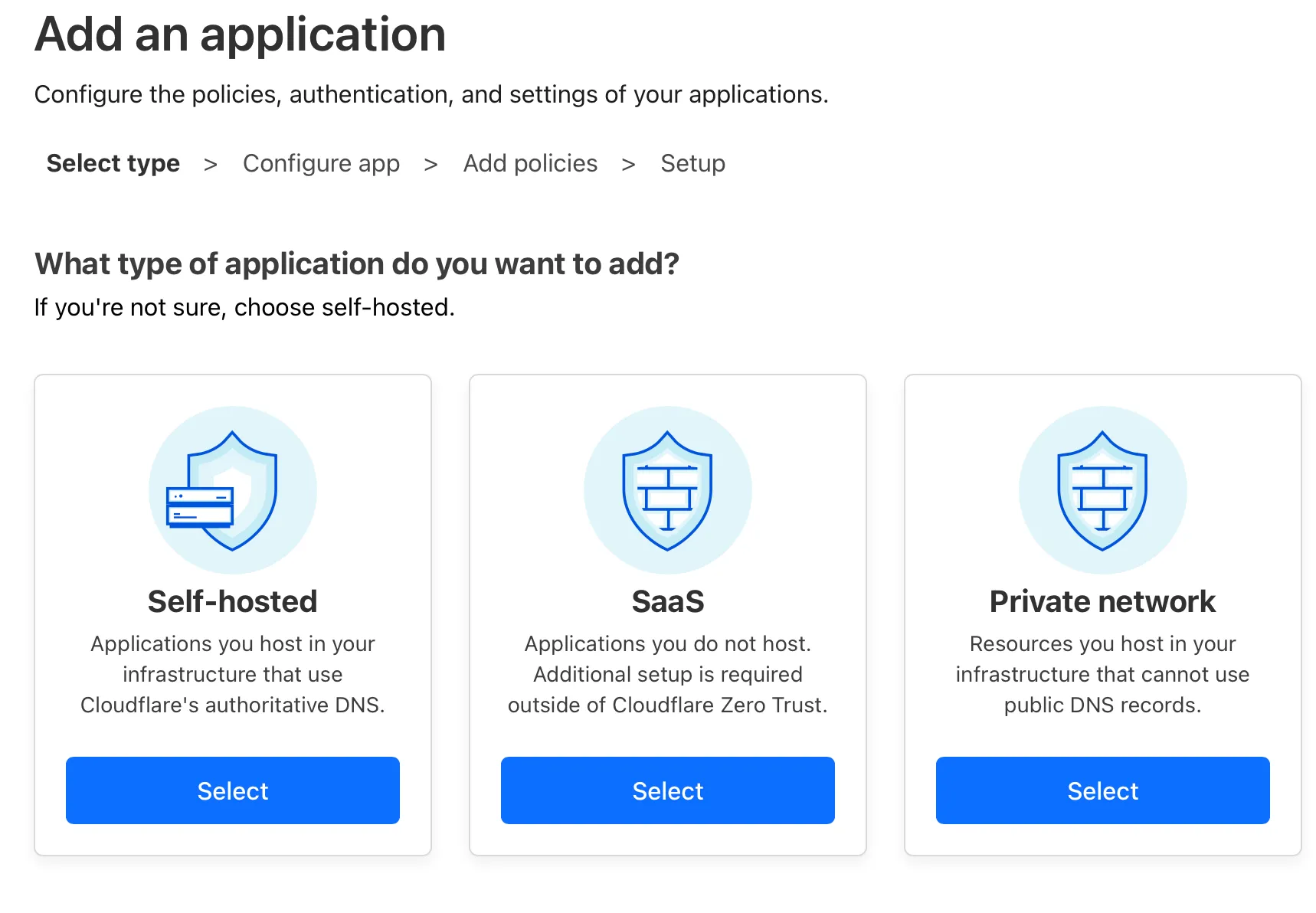
Choose the Self-hosted type.
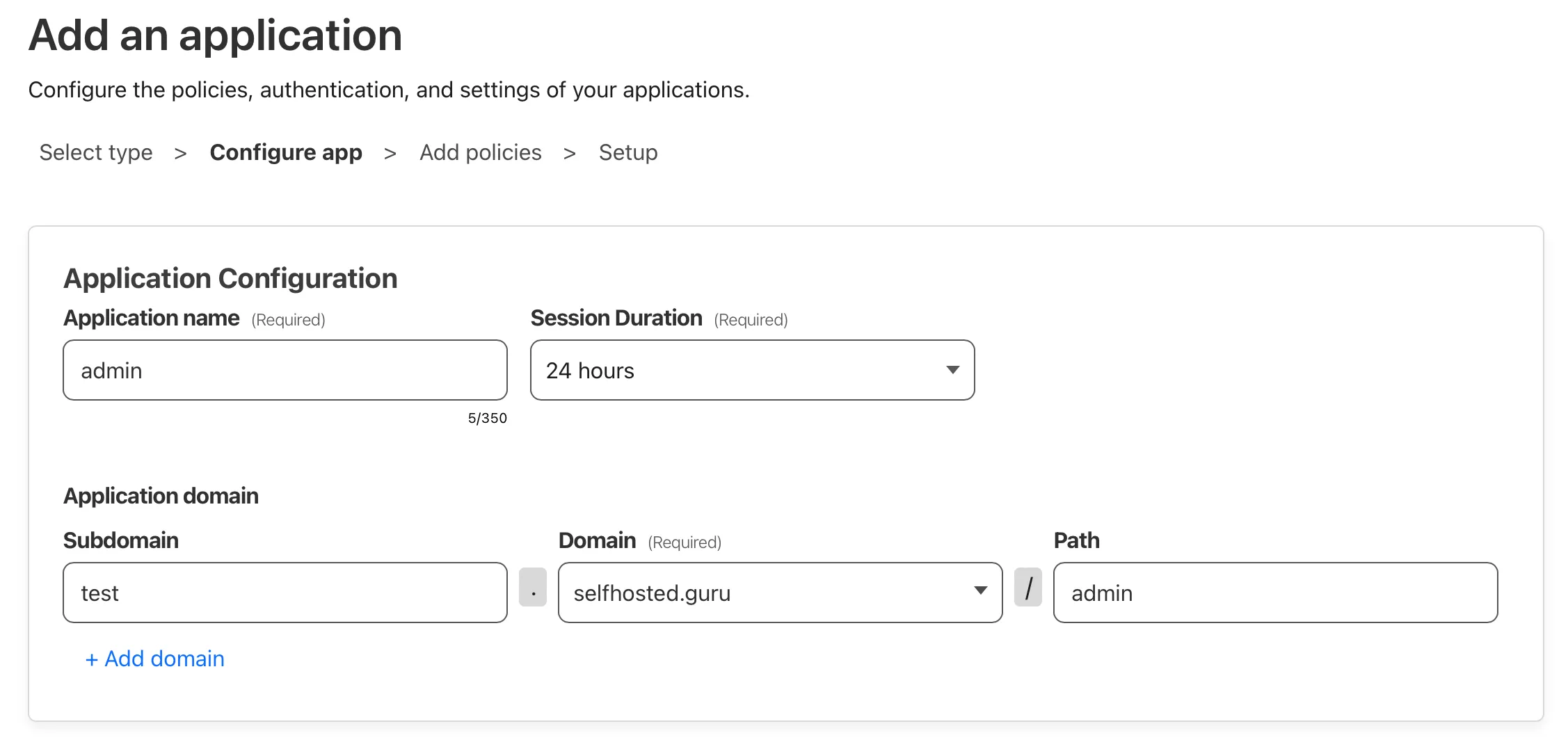
Fill in the fields:
- Application name: the name you will see in the list of applications.
- Session Duration: how long a login stays valid.
- Subdomain, Domain, Path: the subdomain, address or single page that needs protection.
The same step has other settings you can change to your taste. Click “Next”.
Add an access policy
Give the policy a name; in my example it is admin. Under “Create additional rules” choose how visitors are verified. The simplest option is email. A visitor is asked for an email address, and if it is on the allowed list, they receive a one-time code. For any other address the page still asks for a code, but nothing is sent, so there is no way in.
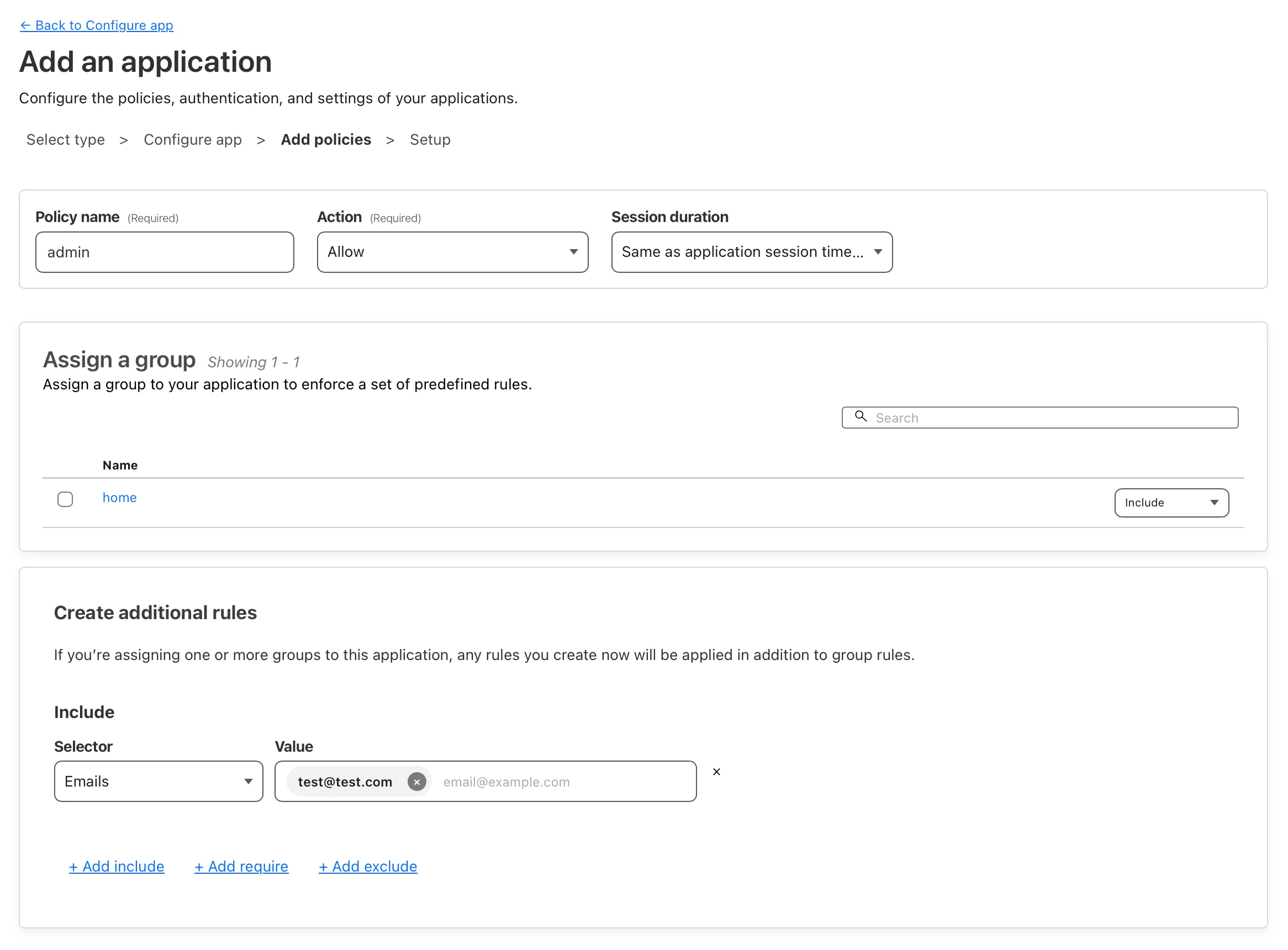
Leave the next step as it is and click “Add application”. The new application appears in the list.
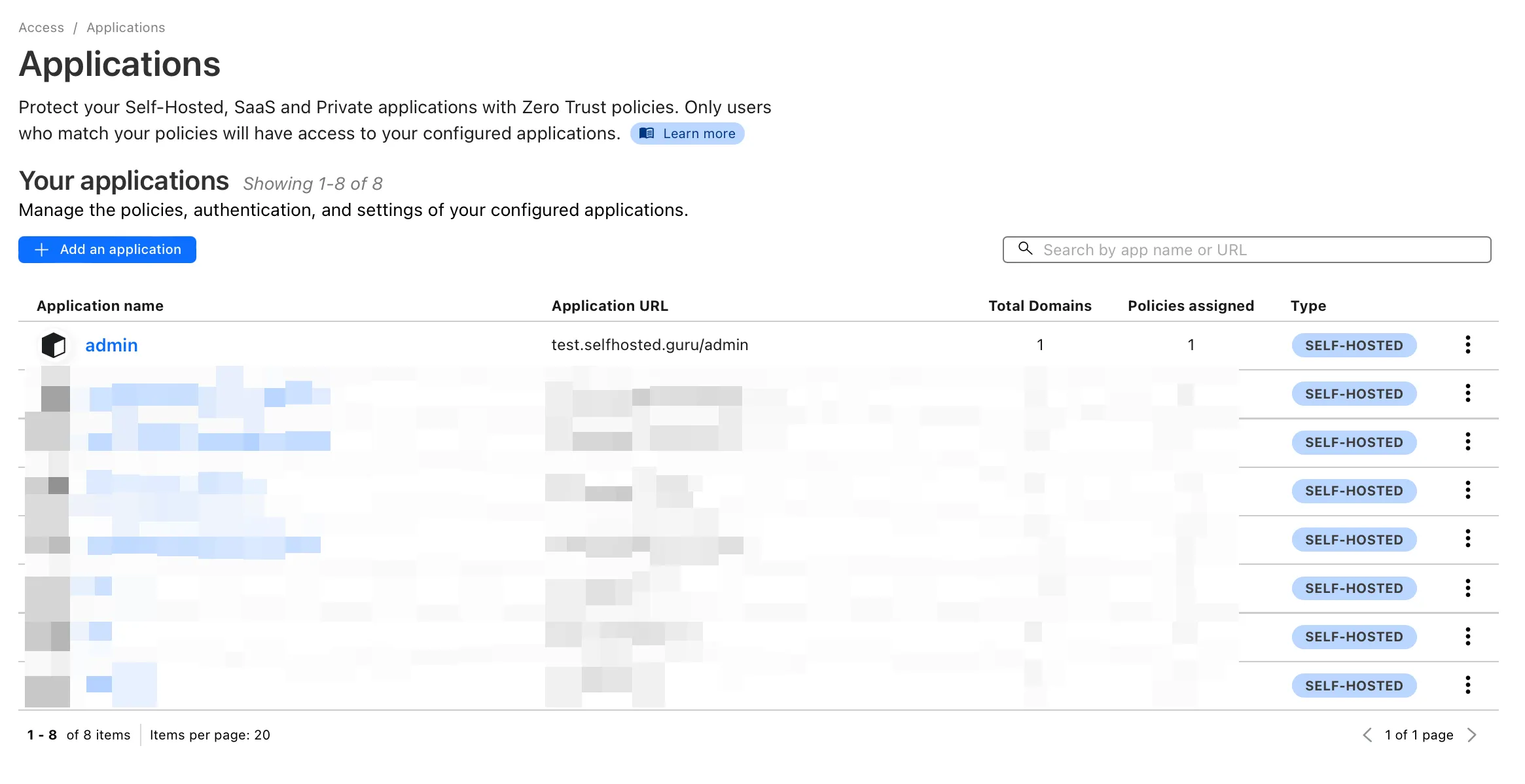
Check how it works
Open the address you set for the application. Instead of the site you see the login page.
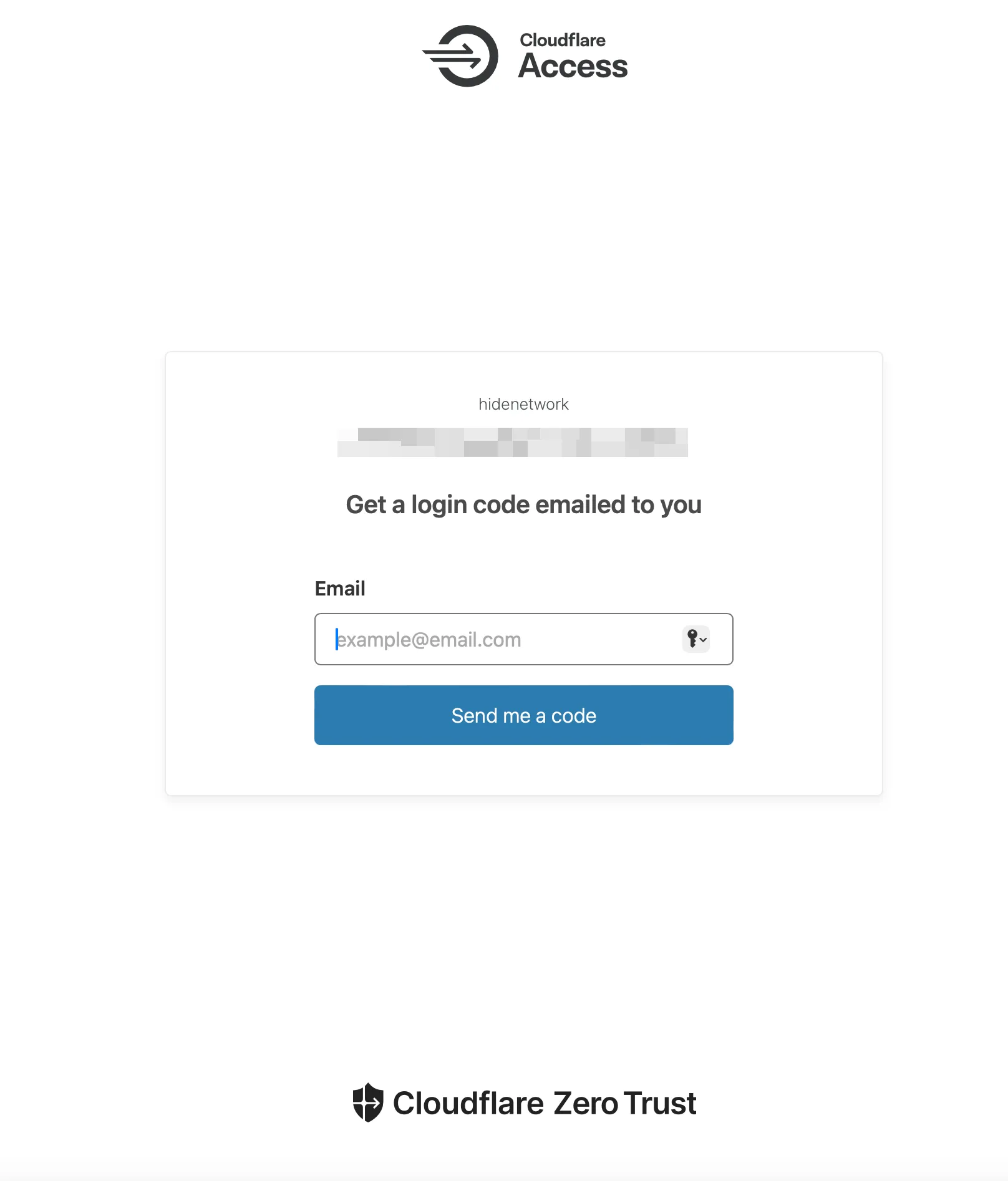
Enter the allowed email and click “Send me a code”. The next page asks for the one-time code.
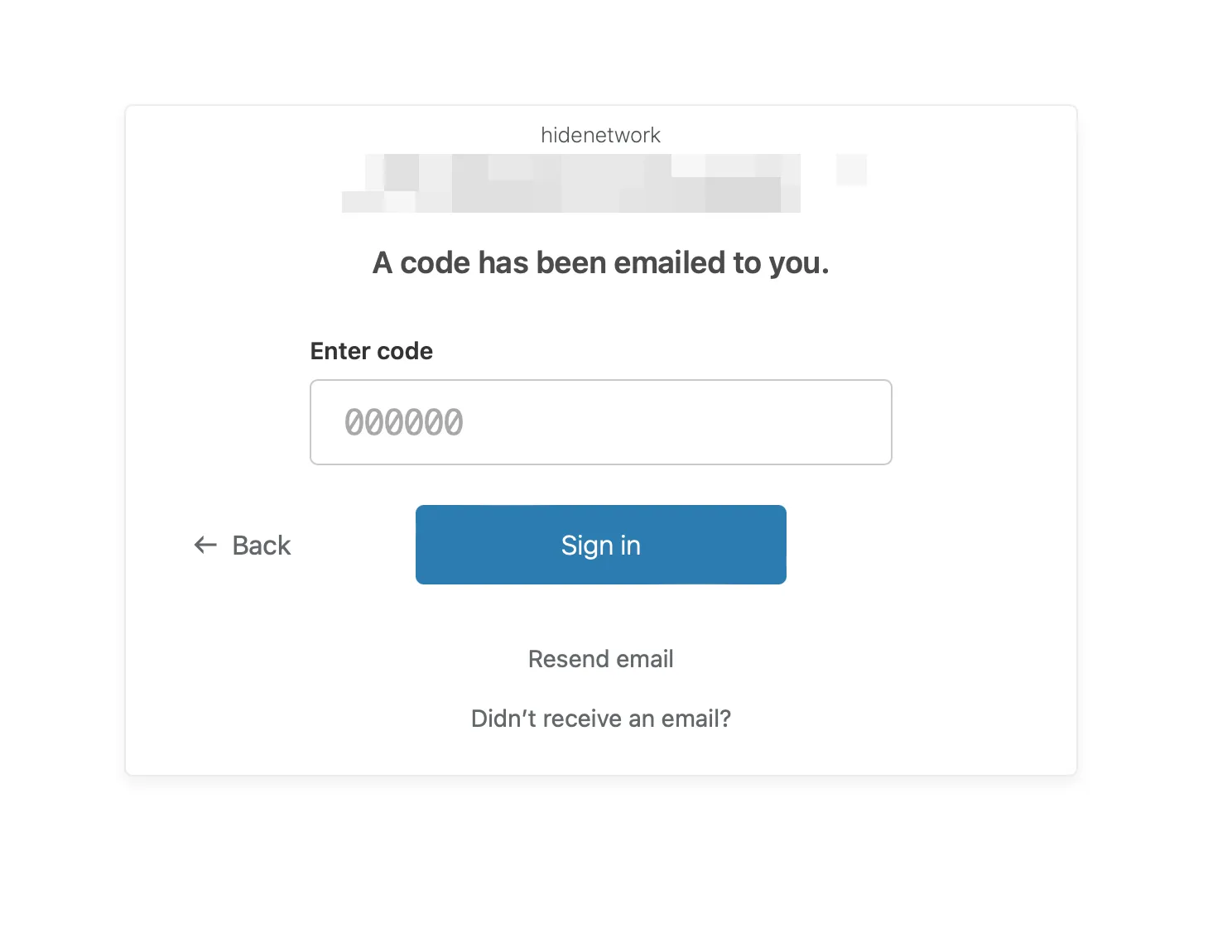
The email looks like this:
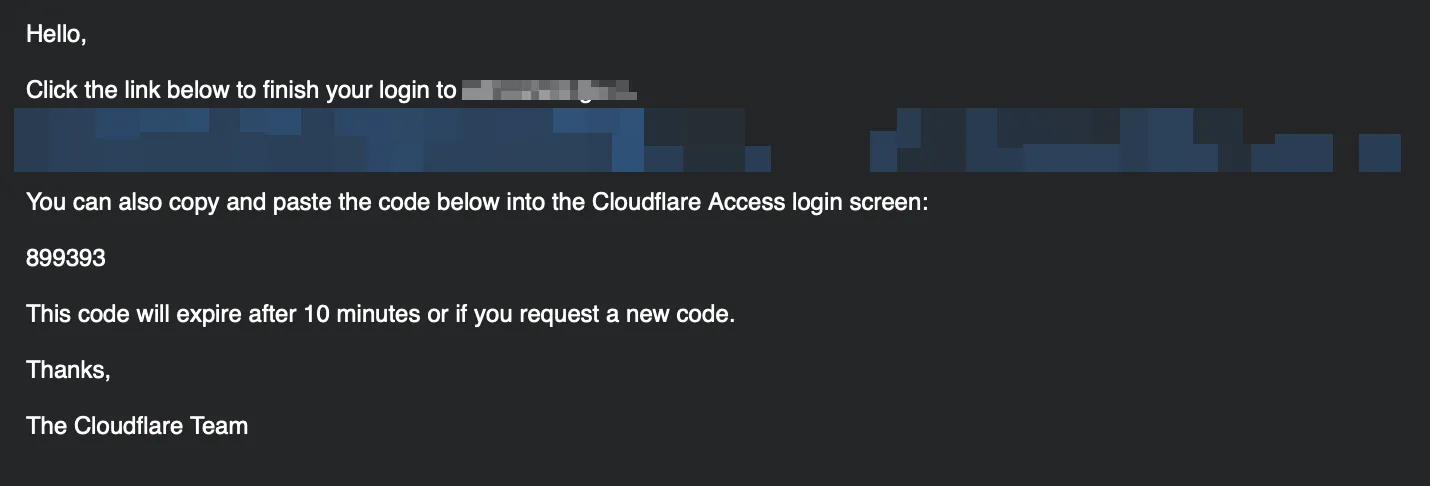
After you enter the code or follow the link from the email, the protected resource opens.
Advantages
- Easy to set up
- Several ways to verify a visitor before they reach the resource
- No changes on the website or the service